
Sharing files and folders/sub-folder(s) with usernames, users and/or contacts with the appropriate privileges for read (download), write (upload), read/write, and read/write with no delete, of the files and documents.
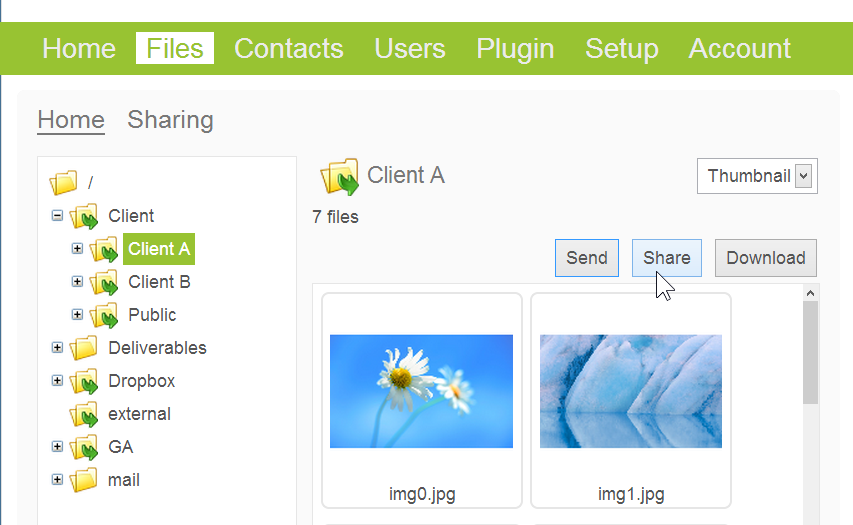
1. Click the Files tab > Select the folder you’d like to share > click Share
2. Click Add contacts (for sharing folders with Contacts or Users/Usernames)
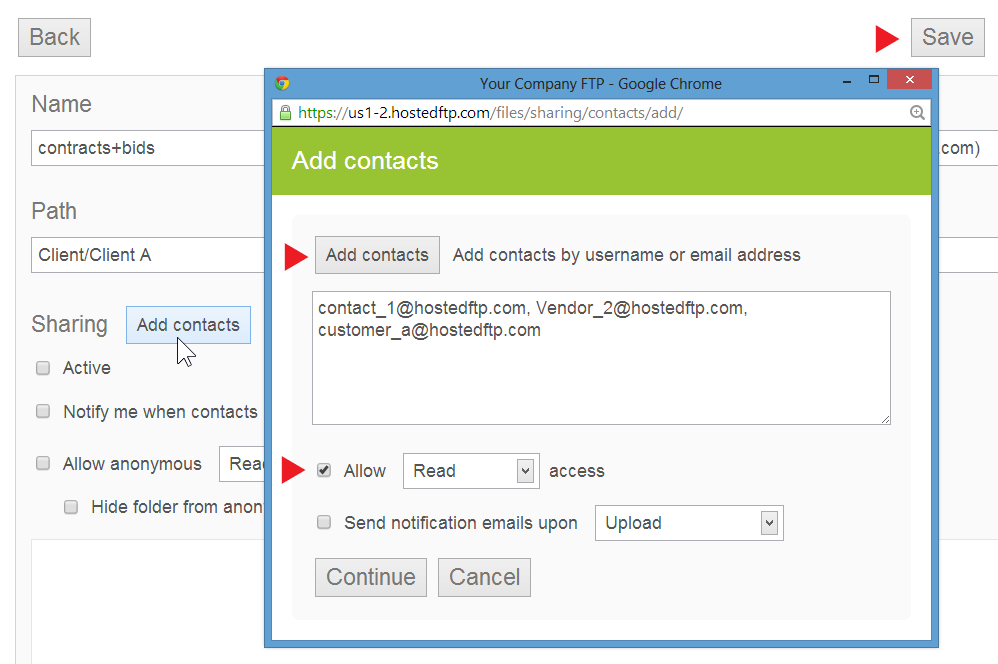
3. For new Contacts
• Enter email addresses of people you want to share the folder with if they are not already contacts
For existing Contacts or Usernames or Users already in the account
• Add contacts in the pop-up to add share by email or Username
4. Select the Allow Access privilege for these contacts
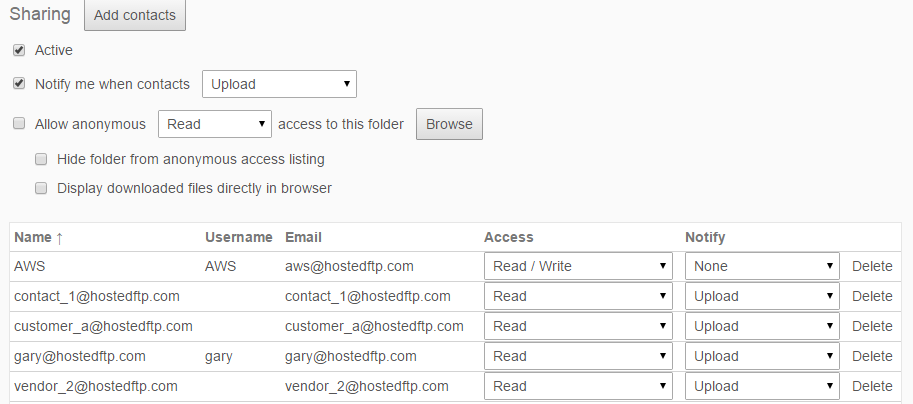
Note: You can update the individual contact privileges and notifications later if required
5. Click Continue > Save; you can now view a complete list of shared privileges and notifications (see below)
For more information on managing shared folder privileges, click here.


